How to Resize an Image by Percentage
Resize Image By Percentage
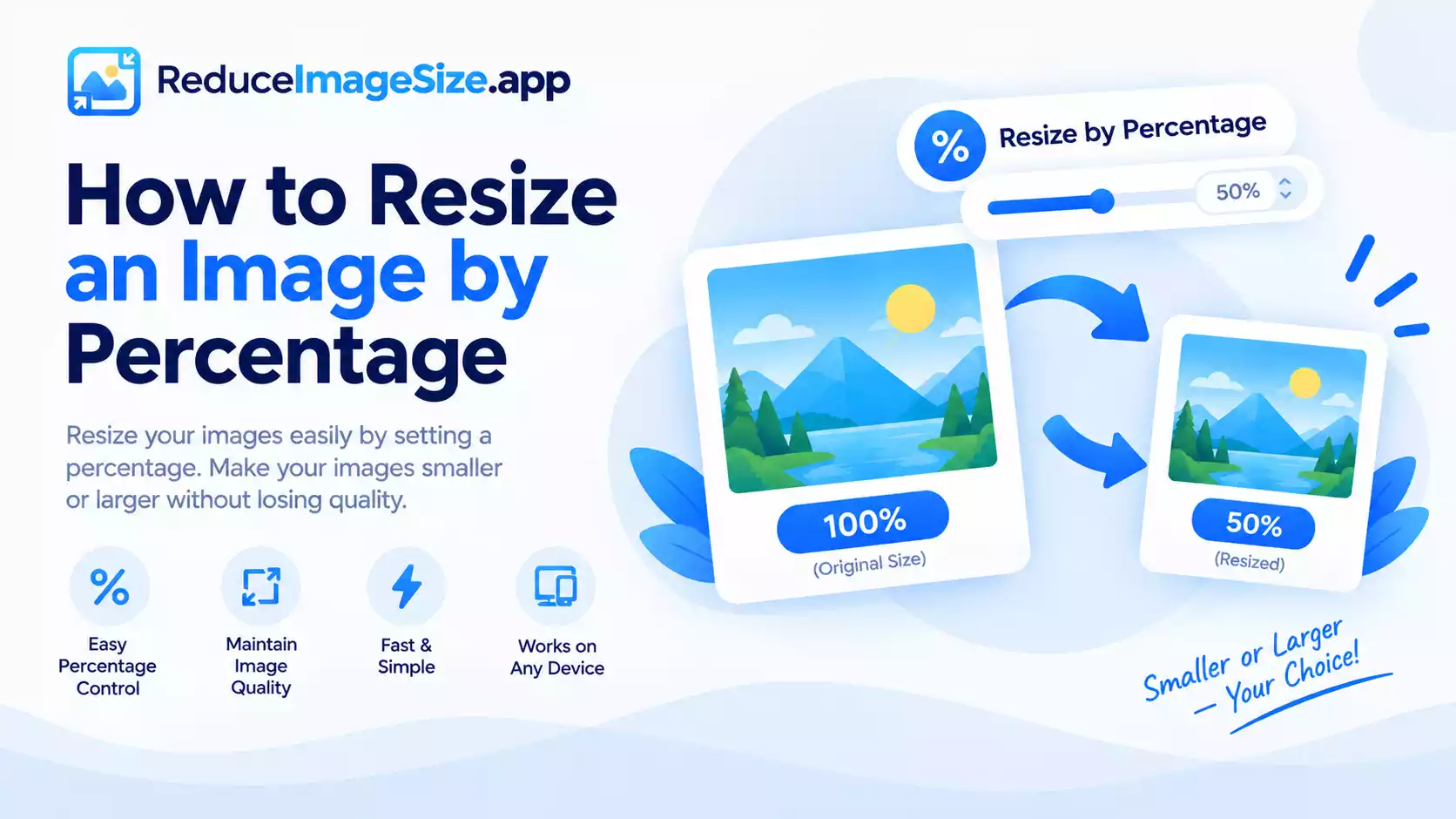
Resizing by percentage scales an image proportionally without requiring you to calculate the exact resulting pixel dimensions yourself. Set 50%, and both width and height are cut in half; set 75%, and both shrink to three-quarters of their original size.
When Percentage Is More Useful Than Exact Pixels
Exact pixel dimensions make sense when a specific platform or slot requires a specific number. Percentage makes more sense when you’re working with several images of different original sizes and want them all scaled down by the same relative amount, without doing the math for each one individually — a batch of photos at various resolutions, all reduced to half their size, will each end up proportionally smaller without any of them being stretched or distorted relative to their own original.
How to Resize by Percentage
- Upload your image (or images, using the bulk tool for several at once).
- Choose a percentage instead of entering exact width and height.
- Download — the result keeps the exact same proportions as the original, just scaled.
Frequently Asked Questions
Does resizing by percentage risk distorting the image?
No — since both dimensions scale by the same percentage, the original proportions are always preserved automatically.
What percentage should I use to reduce file size noticeably?
50% (half the width and height) is a common starting point — it reduces the total pixel count to a quarter of the original, which often has a large effect on file size when combined with compression.
Related tools: Resize Image · Reduce Image Size Bulk · Convert image