How to Reduce Image Size Online – Free, No Software Needed
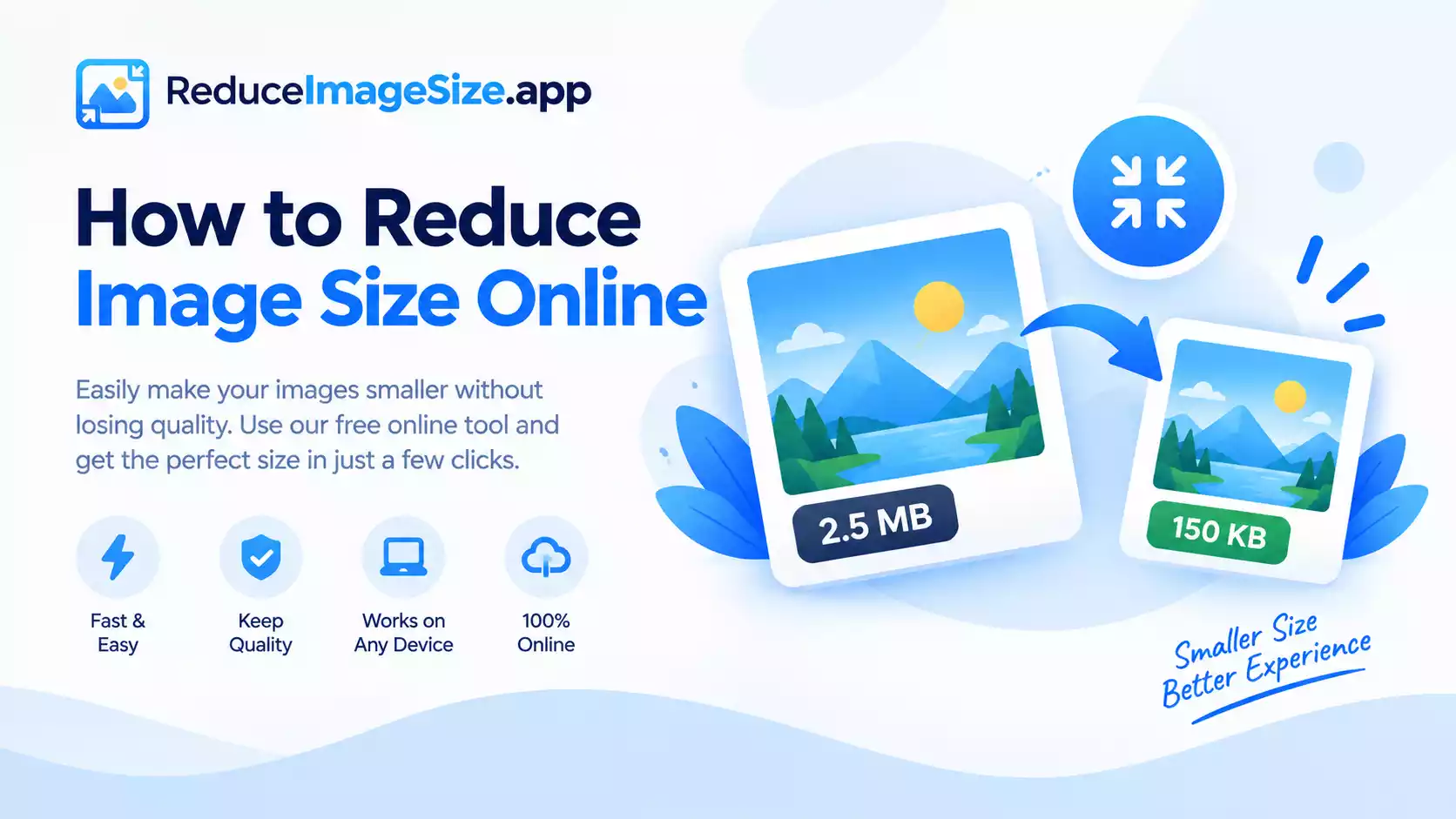
How to reduce image size — and, phrased the way a large share of people actually search it, how to low image size — comes down to the same basic idea whether you’re on a phone or a laptop: you don’t need installed software to do this anymore. It happens entirely in the browser.
The Two Ways to Do It
Manually, with built-in tools. Windows Photos and Mac Preview can both resize an image — open it, use the resize option, and lower the percentage or set new dimensions. This changes the pixel dimensions, which often reduces file size as a side effect, but it doesn’t give you control over an exact KB or MB target. If a form says “must be under 100KB” and you resize manually, you’re guessing and checking rather than hitting the number directly.
Online, with a target-size tool. This is the more reliable option when the requirement is a specific file size rather than just “smaller.” Upload the image, set the exact KB or MB number you need, and the tool compresses to fit it directly — no guessing.
How Can I Reduce My Image Size — Step by Step
- Go to ReduceImageSize.app — no signup needed.
- Upload your image: JPG, JPEG, PNG, WebP, AVIF, or HEIC are all accepted.
- Choose your target — a KB preset if you’re working with a small file size (see the KB hub), or an MB preset for larger photos (see the MB hub).
- Adjust quality, crop, or dimensions if you want finer control.
- Download the result.
Reduce Image Size Online, Free
Reduce image size online, reduce image size free, and reduce image size online free all point to the same thing here: there’s no cost, no watermark added to your download, and no daily limit on how many images you process. That’s true whether you’re reducing one photo for an email or working through a folder of them.
Does It Work on Mobile?
Yes — the same tool runs the same way in a phone’s browser as it does on a desktop. There’s nothing to install on Android or iPhone; you open the site, upload from your gallery or camera roll, and the process is identical.
What You Can Actually Set
- File size — an exact KB or MB target, or a custom number
- Quality — a slider for balancing size against visual detail
- Dimensions — width, height, or a percentage
- Format — keep the original, or convert to JPG, PNG, WebP, or AVIF
- Crop — remove unwanted areas before you compress
Frequently Asked Questions
Do I need to install anything?
No — it runs entirely in your browser, on desktop or mobile.
Is this different from resizing an image in Windows Photos or Mac Preview?
Yes — those tools change dimensions, which can shrink file size as a side effect, but they don’t let you target an exact KB or MB number the way this tool does.
Is there a cost?
No — free, with no signup and no daily limit.