
KB vs MB: Understanding Image File Size (Simple Explanation)
KB vs MB: Understanding Image File Size
A form says your photo needs to be “under 200” and doesn’t say KB or MB — and that ambiguity matters a lot, because 200KB and 200MB are wildly different sizes. Here’s the difference, in plain terms, and how to tell which one actually applies to you.
The Basic Units
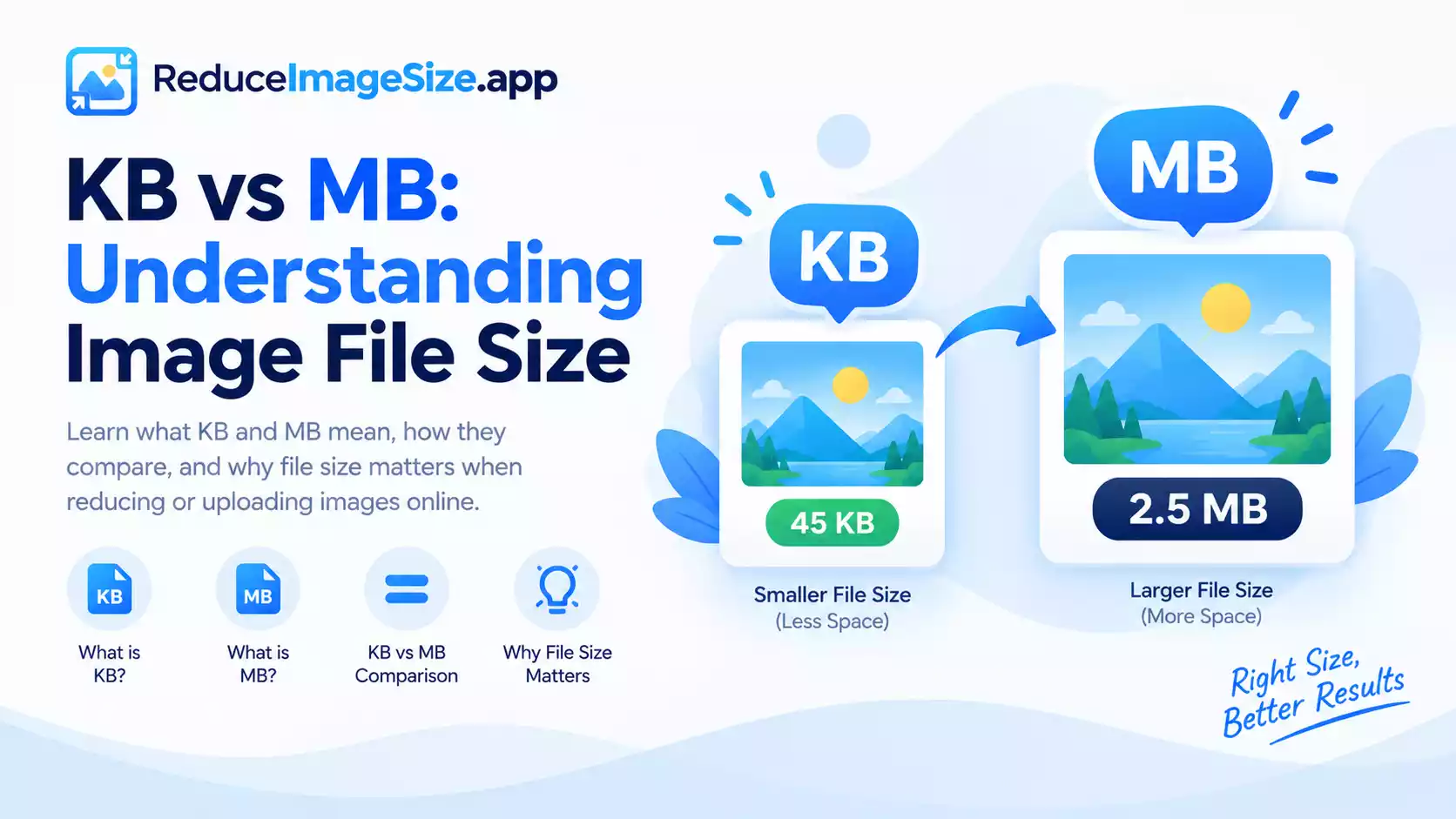
A kilobyte (KB) is roughly a thousand bytes. A megabyte (MB) is roughly a thousand kilobytes — so 1MB is about 1,000KB. A typical unedited smartphone photo usually falls somewhere between 2MB and 12MB. A small, simple graphic like a signature or a basic logo can be under 20KB. That gap is the reason strict portals — government forms, exam registrations — almost always ask for KB, not MB: they want something much smaller than a raw camera photo.
Rough Conversion Reference
- 20KB ≈ 0.02MB
- 100KB ≈ 0.1MB
- 500KB ≈ 0.5MB
- 1,000KB ≈ 1MB
- 2,000KB ≈ 2MB
If a form’s limit is written as a number under 1,000, it almost certainly means KB. If it’s written as a small number like 1, 2, or 5 with no more context, it almost certainly means MB — a limit of “1” wouldn’t make sense as 1KB, since that’s smaller than almost any real photo.
File Size vs. Pixel Dimensions
These are two different things people often confuse. Pixel dimensions (say, 1920×1080) describe how many pixels wide and tall an image is. File size (say, 350KB) describes how much storage space the file actually takes up.
Two images with identical pixel dimensions can have very different file sizes depending on their content, compression, and format — a simple graphic with large flat color areas compresses far more than a detailed, busy photo at the same dimensions.
This is also why “just resize the dimensions” doesn’t always hit an exact KB or MB target reliably on its own — dimensions influence file size, but they don’t control it directly the way a target-size tool does.
When You’d Use Each
Reach for a KB target when:
- A government portal, exam form, or job application specifies a number under 1,000
- You need a signature image, a small profile thumbnail, or a passport-style photo
- The word “KB” appears explicitly on the form
Reach for an MB target when:
- You’re uploading directly from a phone or camera and the file is naturally large
- An email attachment is bouncing or a CMS is rejecting an oversized file
- The platform’s stated limit is a small whole number with no more specific unit given, which usually implies MB
Reduce Image Size from MB to KB (and Back)
Reduce image size from mb to kb comes up when you’re starting with a normal-sized photo (several MB) and need to land in the kilobyte range instead — a much bigger single jump than a typical MB-to-MB compression, since you might be cutting the file down by a factor of 10 or more. Reduce image size kb to mb is the same idea in reverse. Neither direction needs a separate process — the tool takes whatever number you enter and whatever unit you select; there’s no difference in how it works depending on which unit you started with.
Frequently Asked Questions
How do I know if a form means KB or MB?
If the number is under 1,000 with no unit stated, it’s almost always KB. If it’s a small number like 1–5, it’s almost always MB.
Is 500KB bigger or smaller than 1MB?
Smaller — 1MB is roughly 1,000KB, so 500KB is about half of that.
Do I need a different tool for KB versus MB?
No — the same tool handles both; you just choose the unit and the target number.
Related tools: Reduce Image Size in KB hub · Reduce Image Size in MB hub · Resize Image to 100KB · Reduce Image Size to 500KB · Reduce Image Size to 1MB

One Comment