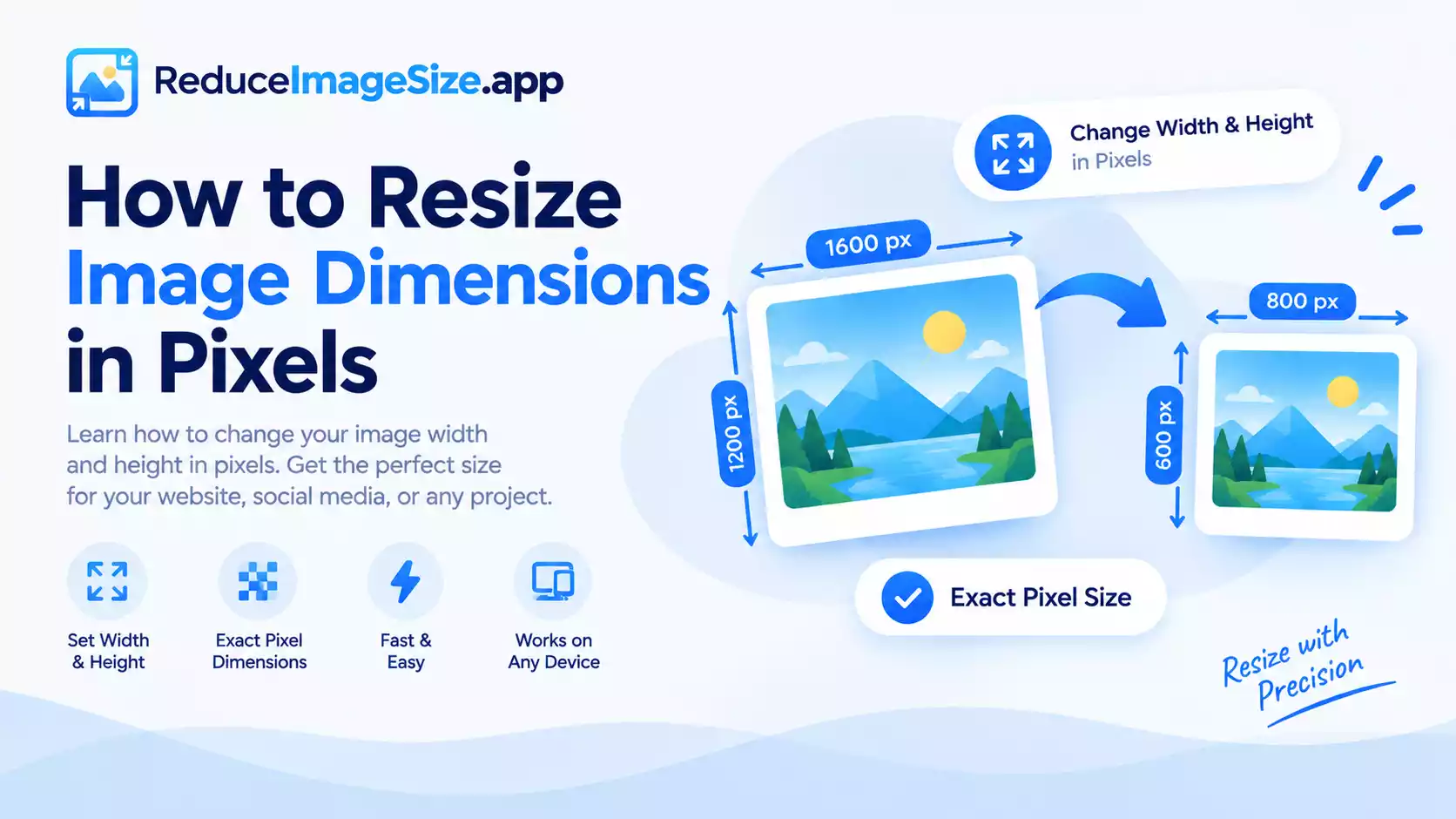
How to Resize Image Dimensions in Pixels
Resize Image Dimensions in Pixels
Pixel dimensions describe exactly how many pixels wide and tall an image is — 1920×1080, for example. Setting exact pixel dimensions matters most when a specific slot or platform expects a specific size, rather than “smaller” in general.
Common Pixel Dimensions Worth Knowing
- Website hero images: often 1200–1920px wide, depending on the design
- Social media profile photos: commonly a square, such as 400×400px
- Blog post thumbnails: frequently around 800×450px (a 16:9 ratio)
- Print at standard resolution: requires significantly more pixels than screen use — a 4×6 inch print at a common print resolution needs roughly 1200×1800 pixels
These aren’t universal rules — always check the specific platform or print service’s current requirements — but they’re a reasonable starting point if you don’t have an exact number yet.
Setting Exact Dimensions
- Upload your image.
- Enter the exact width and height in pixels.
- Decide whether to lock the aspect ratio — if the target dimensions don’t match your original photo’s proportions, you’ll need to either crop first or accept some stretching.
- Download.
If your original image doesn’t share the same proportions as your target size, cropping to the right ratio first, then resizing, gives a cleaner result than stretching to fit.
Related tools: Resize Image · Crop Image · How to Resize an Image Without Losing Quality