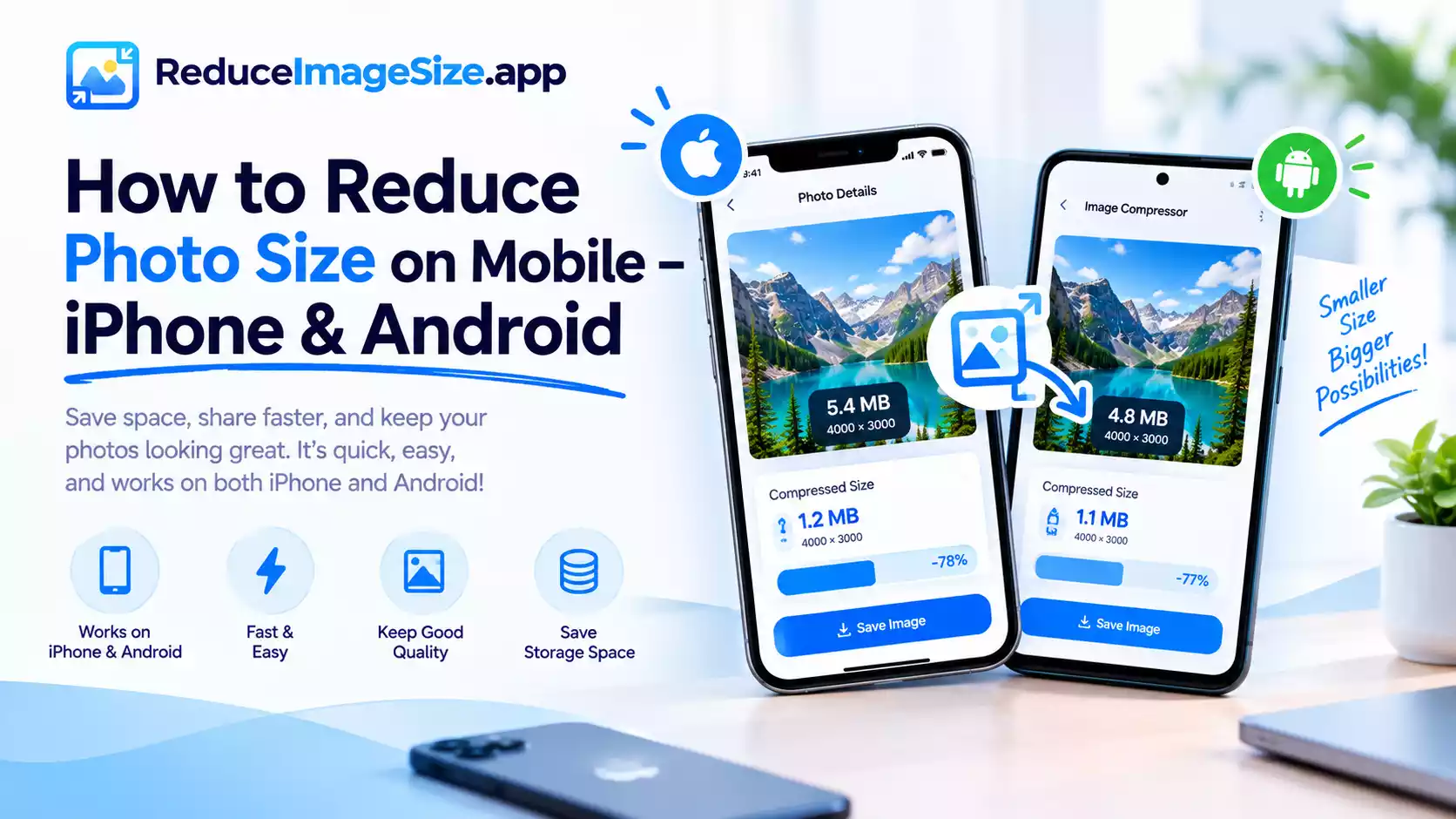
How to Reduce Image Size on Mobile – iPhone & Android
Reduce Image Size on Phone
You don’t need to install an app just to shrink a photo on your phone — this works entirely in your phone’s browser, on both iPhone and Android.
On iPhone
Reduce image size on iPhone is simplest and easy. Open ReduceImageSize.app in Safari or Chrome, upload a photo directly from your Photos app, and choose your target size. If your photo is in HEIC format (the default for iPhone photos), it’s accepted for upload without any extra step — the download comes back as JPG or WebP, since browsers can’t save files out as HEIC, which is worth knowing if you specifically need to keep the HEIC format for another reason.
On Android
The process is the same — open the site in your browser, upload from your gallery, and choose your settings. Android photos are typically already JPG, so there’s no format conversion happening automatically, as there is with iPhones’ HEIC photos. Reduce image size on Samsung phones and other popular Android phones as well, without losing quality.
Why Mobile Photos Need This More Than You’d Expect
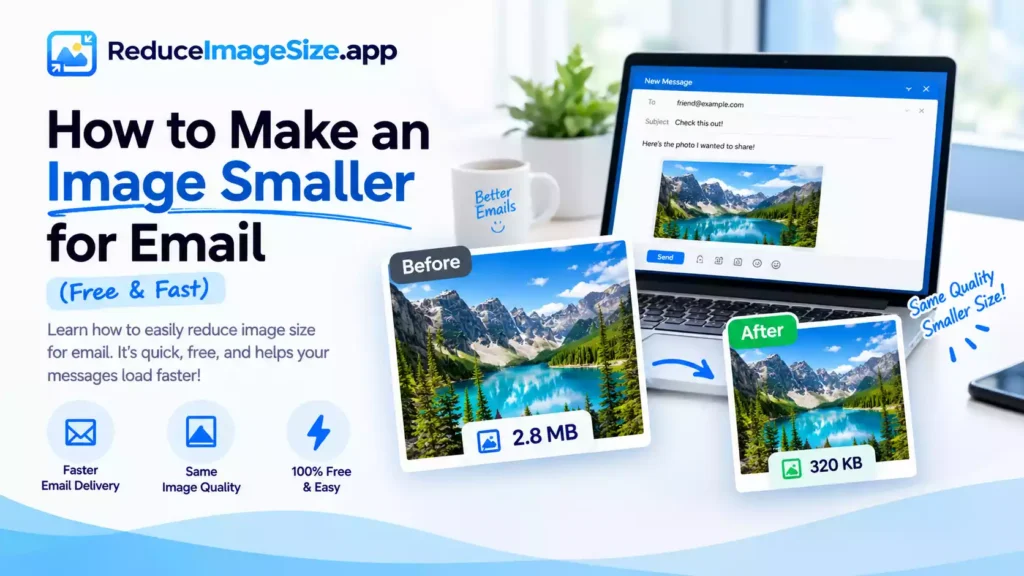
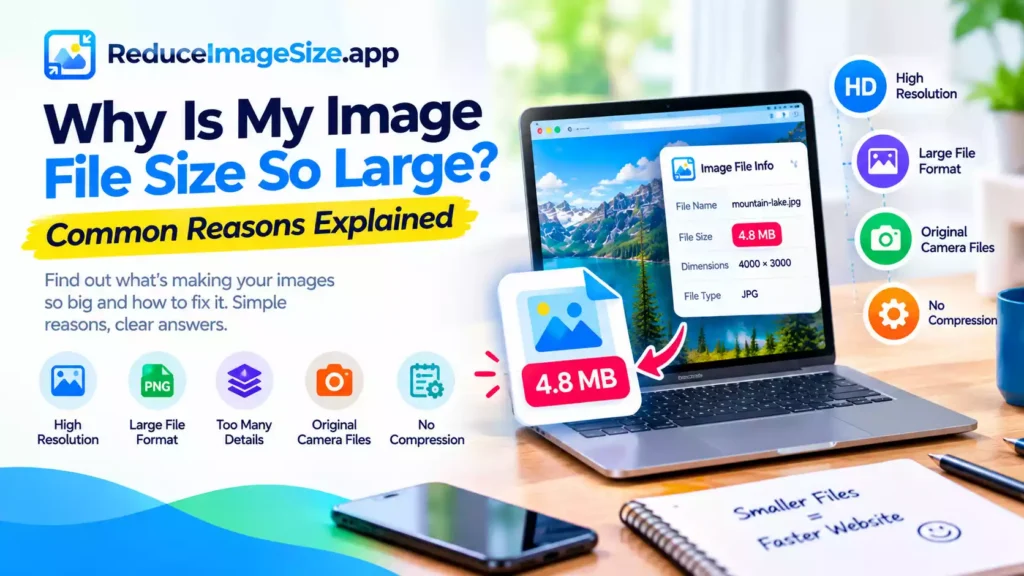
Modern phone cameras shoot at resolutions built for large prints and zooming in after the fact — which means an ordinary photo is often 5–12MB, far more than most upload forms, messaging apps, or storage plans expect. Reducing it before sending or uploading avoids the “file too large” rejection entirely.
Quick Steps
- Open the site in your phone’s browser.
- Upload the photo from your gallery or camera roll.
- Choose a KB target (for strict forms) or MB target (for general sharing).
- Download — the file saves to your phone like any other download.
Related tools: Reduce Image Size in KB hub · Reduce Image Size in MB hub · Reduce Image Size Now